
Short answer: A laptop that turns on but will not charge may have an adapter, cable, port, battery, or charge-recognition problem. Start with safe external checks. Stop if the cable, port, adapter, or battery is damaged, hot, swollen, or only works when forced into position.
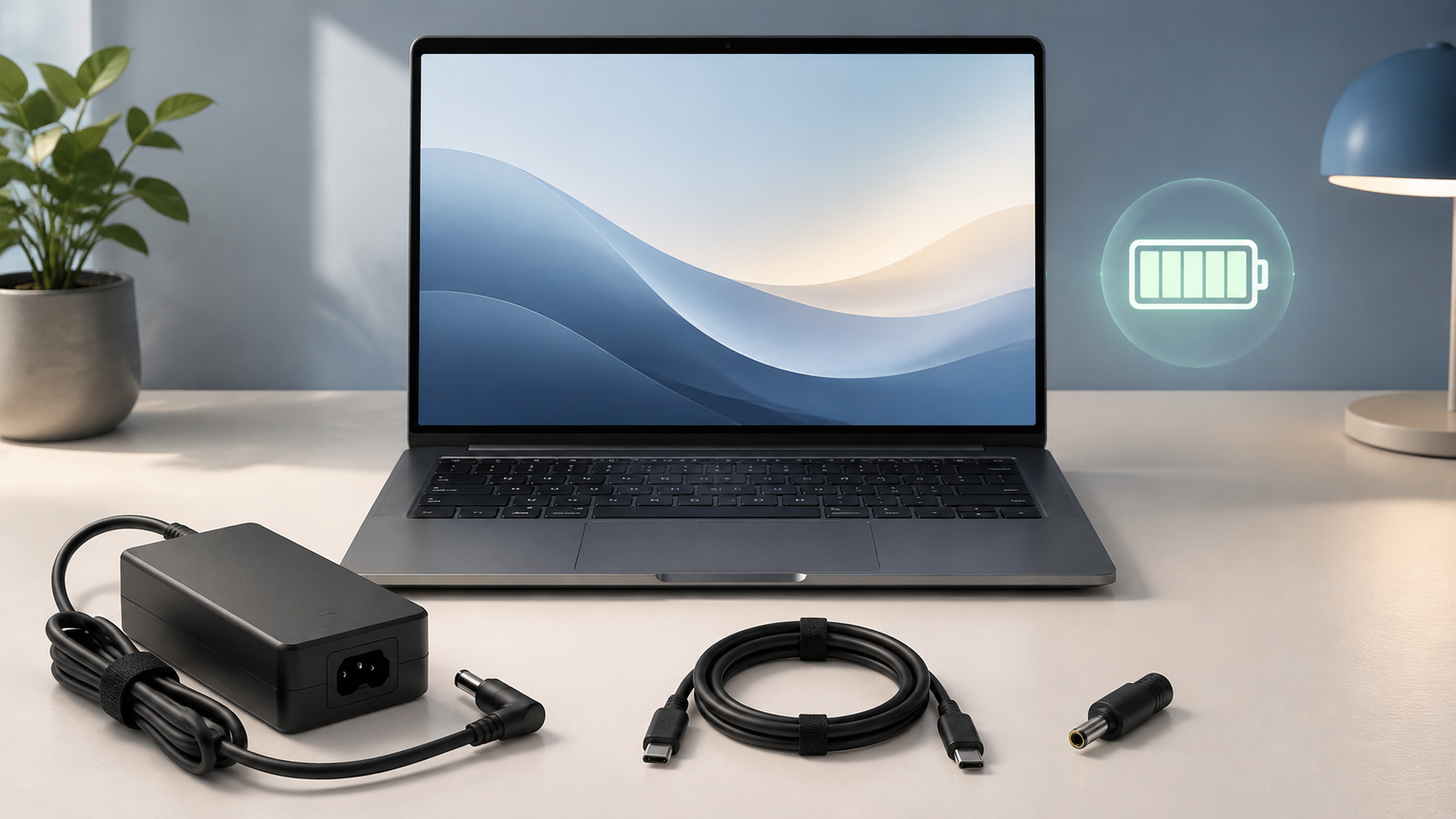
First, make sure this is a charging problem
A charging problem is different from a no-power problem.
This guide is for a laptop that shows some sign of life but has a battery that will not charge, charges slowly, stops at a certain percentage, or only charges under certain conditions.
If the laptop has no lights, no fan response, and no reaction to a known-compatible charger, use the laptop no-power guide instead. That symptom can involve a different part of the power path.
Safe checks to make before repair
Start with the parts you can inspect without opening the laptop.
- Disconnect the charger from the wall and laptop. Look for exposed wire, fraying, cracked insulation, bent pins, loose connector parts, burning marks, or a damaged power brick.
- Check that the charger is fully seated at both ends. Hold the connector body, not the cable, when unplugging it.
- Inspect the laptop’s charging port with a light. Do not insert metal objects, force a connector, spray liquid into the port, or bend the connector to make contact.
- Compare the charger label and laptop documentation. A barrel connector that fits is not automatically the correct charger. The same is true for USB-C. The laptop may need a particular charging standard or wattage.
- If the laptop uses a dock, hub, power strip, or extension, test only with a known-safe wall outlet and the charger connected directly to the laptop. Do not test with a damaged extension lead or overloaded strip.
- Note what happens: charging light behavior, battery percentage, error messages, whether charging stops under load, and whether the connector must be held at an angle. Those details help separate a compatibility issue from a port, battery, or charging-path fault.
What the charging pattern can mean
| What you notice | Possible fault category | Safe next step |
|---|---|---|
| No charge light and visible cable or adapter damage | Adapter, cable, plug, or wall-power issue | Stop using the damaged item. Replace only with a model-compatible power supply. |
| Charging starts only when the connector is held a certain way | Cable connector, DC-in port, USB-C port, or internal connection | Do not keep forcing it. Arrange an inspection. |
| USB-C laptop charges slowly or loses charge while plugged in | Charger wattage, cable capability, USB-C Power Delivery compatibility, dock, or laptop load | Check the laptop documentation and try only a confirmed compatible charger. |
| Laptop reports an unknown, weak, or unsupported adapter | Charge recognition, adapter compatibility, cable, port, or charging-path issue | Record the exact message and seek model-specific diagnosis before buying parts. |
| Battery percentage stays flat despite a stable charger | Battery health, battery connection, charge control, or charging path | Back up important files and arrange diagnosis if basic external checks do not resolve it. |
| Case is lifting, battery area is swollen, or charging causes unusual heat | Battery safety issue | Stop charging and using the laptop. Do not press, puncture, open, or dispose of the battery with household waste. |
A damaged or frayed adapter cable is a stop point, not a reason to keep testing. Dell also notes that USB-C and barrel adapters need model-specific compatibility and wattage checks. Read the manufacturer guidance.
Why a replacement charger can be misleading
A connector that physically fits may still be the wrong choice.
Some laptops need a specific wattage. Others need USB-C Power Delivery support and a cable that can carry the required power. A lower-capacity charger may charge slowly, show a warning, or allow the battery to drop while the laptop is running.
Do not buy a battery just because the charging symbol is missing. First rule out an unsafe or incompatible charger, cable, port, or charge-recognition issue.
Microsoft also notes that a USB-C cable or charger that does not meet the computer’s power requirements can lead to slow charging or battery discharge while plugged in. Microsoft Support explains the limitation here.
When the battery is more likely to be involved
A battery becomes a stronger possibility when the charger and port appear stable but the laptop shuts down immediately when unplugged, the percentage behaves erratically, or the laptop reports a battery-health warning.
That still does not confirm the battery is the only fault. A charging path, battery connector, or charge-control problem can produce similar symptoms.
Some laptops also use battery-protection features that intentionally stop charging below 100 percent. Check the laptop manufacturer’s power or battery settings before treating a consistent charge limit as a failed battery. Microsoft’s Smart charging overview explains this behavior on supported devices.
For battery-specific safety and replacement boundaries, read the laptop battery guide.
When to stop and arrange professional diagnosis
Stop home testing if you find:
- Exposed wire, damaged insulation, bent pins, smoke, burning smell, or unusual adapter heat.
- A swollen battery or a case that is lifting or separating.
- A loose charging port that needs pressure or a particular angle.
- A laptop that repeatedly connects and disconnects from charging.
- A stable, known-compatible charger that is not recognized by the laptop.
- Liquid damage near the charging port.
- A need to open the laptop, disconnect an internal battery, probe the port, or test the board.
These faults can need model-specific parts, controlled testing, or board-level diagnosis. Guessing can turn a port or adapter problem into a larger repair.
What to prepare before booking a diagnostic
Bring or send the laptop model, charger label details, exact warning messages, and a short description of the charging pattern.
Useful examples include:
- “Charges only when the plug is held upward.”
- “Battery stays at 12 percent while plugged in.”
- “USB-C charger works for a phone but not this laptop.”
- “The laptop works on wall power but turns off when unplugged.”
For broader laptop options, visit the Laptop Repair Hub. If the issue may affect whether repair still makes financial sense, see the repair-versus-replace guide.
Frequently asked questions
Can a bad battery stop a laptop from charging?
It can contribute to charging or battery-recognition problems, but it is not the only possible cause. Check the charger, cable, port, and laptop messages before buying a replacement battery.
Should I use any USB-C charger that fits?
No. USB-C connector shape alone does not confirm that a charger, cable, and laptop support the required power level or charging protocol.
Why does my laptop charge only when it is off?
That can point to insufficient available charger power, charge recognition, battery condition, or an internal charging-path issue. If it repeats with a confirmed compatible charger, it needs diagnosis.
Is a battery that stops at 80 percent always faulty?
Not always. Some devices use battery-protection settings that limit charging. Check manufacturer settings first, but stop use immediately if the battery is swollen, hot, leaking, or physically damaged.
Still not charging?
For a charging fault affecting the adapter, cable, port, battery, or charge recognition, ACJ’s laptop repair service can assess the symptom. Include the laptop model, charger details, battery behavior, and any warnings when you contact ACJ Electronics.