
Laptop battery replacement in the Philippines costs ₱1,400 to ₱2,400 for external modular packs, ₱1,850 to ₱3,200 for internal lithium-polymer pouches, and ₱2,800 to ₱4,500 for high-capacity gaming batteries. Turnaround takes 1 to 2 hours if parts are in stock, or 3 to 5 business days for special orders.
When a laptop dies the instant you disconnect the power adapter, drops from forty percent charge to zero in three minutes, or pushes the trackpad upward until clicking becomes impossible, the battery has reached the end of its operational life. On our workbench in Poblacion, San Vicente, Ilocos Sur, Angelo Carlo A. Jacinto (BS ECE, NC II) inspects hundreds of failing mobile power systems. Replacing a modern laptop battery requires more than swapping plastic bricks; it demands understanding cell chemistry, bus telemetry, and fire-safe workbench handling.
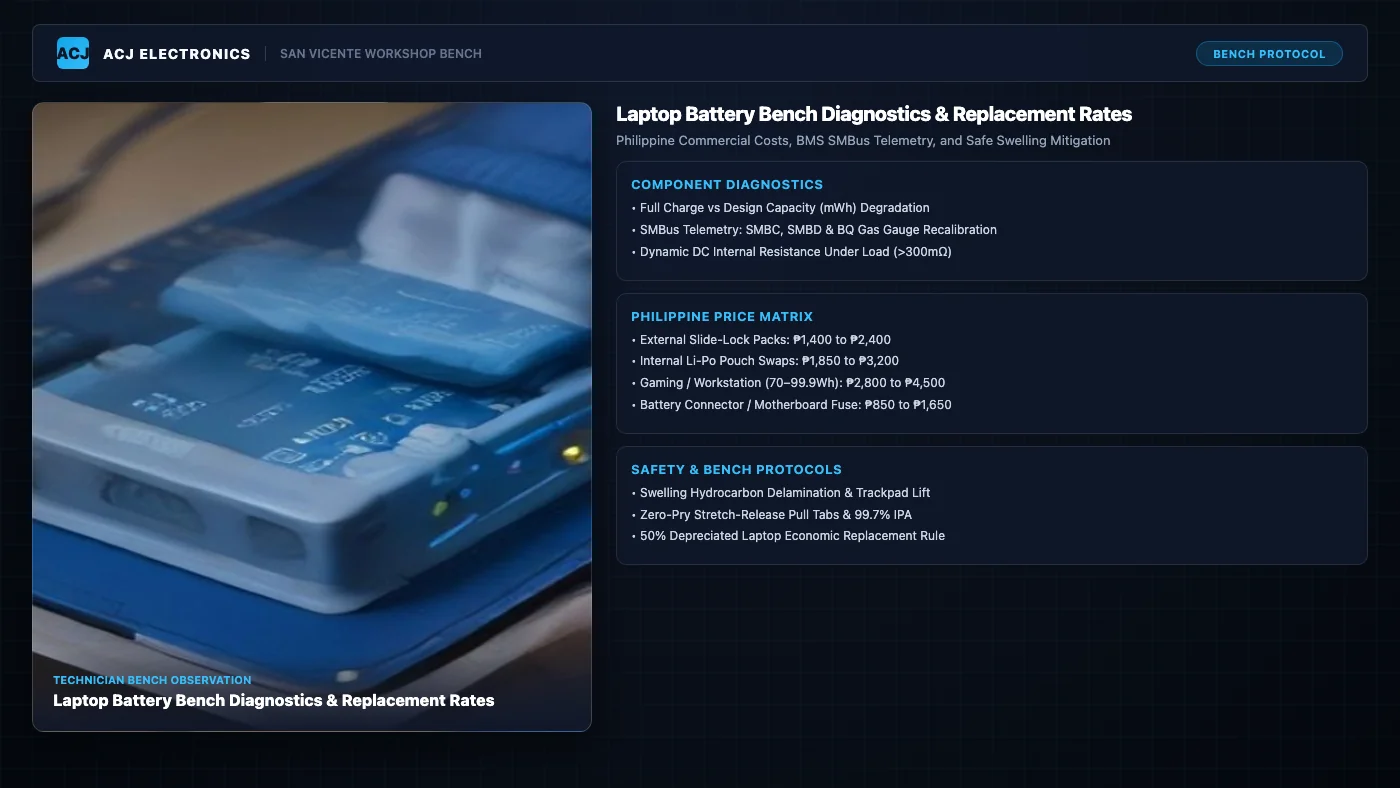
Component-Level Bench Diagnostics: Battery Degradation and Failure Mechanics
Before ordering replacement parts, a bench technician verifies whether the fault resides inside the battery assembly itself, the motherboard charging circuitry, or the AC power adapter. Laptop power delivery is a closed feedback system. Modern motherboards communicate constantly with battery microcontrollers to regulate current flow, cell balancing, and operating temperatures.
On our repair bench, we isolate battery failure across four technical domains:
1. Chemistry Degradation Metrics: Capacity Loss, Cycle Limits, and Internal Resistance
Laptops use either cylindrical lithium-ion cells (typically 18650 or 21700 form factors in older external packs) or flat lithium-ion polymer (Li-Po) pouch cells in modern ultrabooks and gaming rigs. Regardless of form factor, all lithium secondary cells degrade through cyclic electrochemical wear.
- Full Charge Capacity vs Design Capacity: A factory battery possesses a specific design capacity measured in milliwatt-hours (mWh) or milliamp-hours (mAh). As lithium ions become trapped in the graphite anode through solid electrolyte interphase (SEI) layer growth, usable capacity shrinks. When Full Charge Capacity drops below 60% of Design Capacity, runtime degrades noticeably, requiring a battery swap.
- Cycle Count Wear Limits: Quality lithium cells provide 300 to 500 complete charge-discharge cycles before capacity drops below 80%. In the humid tropical heat of the Philippines, ambient operating temperatures regularly accelerate chemical aging. A laptop kept continuously on float charge at 40°C degrades twice as fast as one stored at 22°C.
- Dynamic DC Internal Resistance Under Load: Cell degradation is not just about lost capacity; it causes a steep rise in internal equivalent series resistance (ESR). A fresh lithium pouch exhibits internal resistance around 30mΩ to 60mΩ. Degraded cells often spike past 300mΩ. When the laptop CPU or GPU boosts, drawing 3A to 5A of current, Ohm’s law ($V_{drop} = I times R$) creates an immediate voltage sag. This momentary drop triggers the motherboard power management controller to execute an emergency hardware shutdown at 30% or 40% battery, even though the operating system reported substantial remaining charge seconds earlier.
2. Battery Management System (BMS) Communications: SMBus Telemetry and Microcontroller Recalibration
Every laptop battery pack contains a dedicated printed circuit board known as the Battery Management System (BMS). The BMS prevents overcharge, over-discharge, short circuits, and thermal runaway. It communicates with the motherboard Embedded Controller (EC) via the System Management Bus (SMBus), a specialized two-wire serial bus derived from I2C running at 100 kHz.
- SMBus Telemetry Lines: The battery connector header houses positive power pins, ground pins, and dedicated digital communication pins: SMBC (System Management Bus Clock), SMBD (System Management Bus Data), and an analog NTC thermistor pin. If dirt, bent header pins, or corrosion sever SMBD, the motherboard cannot read battery telemetry. Windows displays “No battery detected” or “Plugged in, not charging” even when the battery cells are functional. If your machine exhibits charging stalls, review our guide on laptop not charging diagnostic steps.
- Microcontroller Gas Gauge ICs: Modern packs rely on sophisticated gas gauge microcontrollers, predominantly the Texas Instruments BQ series (such as BQ40Z50, BQ20Z45, BQ28Z610) or Renesas ISL controllers. These ICs integrate high-precision analog-to-digital converters monitoring individual cell voltages down to millivolt tolerances across 2S, 3S, or 4S series cell arrangements.
- Permanent Failure (PF) Fuse Blow: When a BMS microcontroller detects a catastrophic anomaly (such as a cell voltage delta exceeding 300mV between series banks, or temperature breaching 65°C), the firmware sets a Permanent Failure (PF) status flag. The IC immediately fires a small internal heating resistor that physically melts an onboard chemical fuse (such as a three-terminal self-control protector). Once this chemical fuse blows, the battery shuts off output voltage permanently. No amount of software updating or wall charging can revive a fuse-locked pack; bench replacement is mandatory.
3. Battery Swelling Mechanics: Pouch Delamination and Puncture Fire Prevention
One of the most frequent customer complaints on our bench is a laptop trackpad that no longer clicks, or a lower casing that rocks unevenly on a flat table. This is caused by lithium-polymer battery swelling, known technically as cell pouch delamination.
- Gas Generation Chemistry: Lithium pouch cells do not have rigid steel cylinders; they rely on flexible aluminum-laminated plastic envelopes. When cells suffer over-voltage, chronic deep discharges, or sustained heat from nearby heat pipes (see our diagnostic analysis on how to fix an overheating laptop), the liquid electrolyte decomposes through parasitic reduction reactions. This decomposition generates volatile gases, primarily carbon dioxide (CO2), carbon monoxide (CO), methane, and ethylene.
- Chassis Deformation Hazards: As gas pressure expands the pouch from its nominal 5 mm thickness to 12 mm or 15 mm, it exerts immense mechanical force against the underside of the palmrest. It seizes trackpad pivot mechanisms, cracks plastic screw bosses, and fractures ultrabook top cases. Continuing to use a laptop with a swollen battery risks cracking the motherboard or rupturing the display panel when closed.
- Thermal Runaway and Puncture Hazards: A swollen pouch cell is under pressure. Never use metal tweezers, screwdrivers, or utility knives near a battery. Piercing the thin separator film allows the lithium-cobalt cathode and graphite anode to make direct contact, triggering an uncontrollable internal dead short. The resulting thermal runaway produces temperatures exceeding 700°C, dense toxic white smoke containing hydrofluoric acid, and jetting flames that destroy the laptop and workbench in seconds.
4. Safe Disassembly Protocols: Zero-Pry Pull Tabs, Solvent Softening, and Sand Buckets
Replacing internal laptop batteries safely requires strict adherence to bench protocols:
- Zero-Pry Stretch-Release Pull Tabs: Manufacturers often anchor internal pouch cells using stretch-release elastomeric adhesive tape. Technicians grasp the pull tabs and pull slowly horizontally at a shallow 10-degree to 15-degree angle. Pulling vertically snaps the tape prematurely, trapping the battery firmly to the chassis.
- Chemical Softening with 99.7% Isopropyl Alcohol: When pull tabs break or manufacturers use permanent foam tape, we never pry against the pouch with tools. We apply several drops of high-purity 99.7% electronic-grade isopropyl alcohol (IPA) along the pack perimeter using a precision blunt syringe. IPA softens the pressure-sensitive acrylic adhesive within ninety seconds without damaging motherboard PCB coatings or plastic framing.
- Non-Conductive Nylon Tools: We only use wide, flat nylon pry bars or braided nylon dental floss slipped under the battery cells to shear softened adhesive. Metal tools are strictly prohibited.
- Fire-Safe Workbench Containment: In our Poblacion workshop, our electronics bench is equipped with a dedicated steel containment bucket filled with dry industrial sand. If a degraded pouch shows thermal escalation or unexpected smoke during extraction, it is immediately submerged in dry sand to smother flames and suppress toxic emissions safely.
Philippine Commercial Laptop Battery Replacement Price Matrix
Battery replacement costs depend on whether the computer uses an external slide-in cartridge, an internal glued Li-Po pouch, or an enterprise multi-cell pack. The table below outlines transparent commercial pricing across realistic Philippine repair tiers:
| Battery Type & Repair Tier | Typical Failure Symptoms | Bench Scope & Parts Standard | Estimated Cost (PHP) | Turnaround Time |
|---|---|---|---|---|
| External Modular Slide-Lock Battery | Zero runtime off AC adapter, blinking battery LED, Windows battery cross icon | OEM or Tier-1 aftermarket 6-cell/9-cell pack (4400mAh to 6600mAh), slide-lock latch testing, charging rail verification | ₱1,400 to ₱2,400 | 30 minutes to 1 hour |
| Internal Li-Po Pouch Battery (Standard) | Runtime under 45 minutes, stiff or raised trackpad, sudden shutoff at 30% to 50% | Chassis teardown, adhesive dissolution, OEM-grade 3-cell/4-cell pouch assembly (35Wh to 56Wh), thermal calibration | ₱1,850 to ₱3,200 | 1 to 2 hours |
| High-Capacity Gaming / Workstation Pack | Rapid discharge during GPU load, extreme pouch swelling, thermal cutoff | High-drain 4-cell/6-cell packs (70Wh to 99.9Wh for Asus ROG, Acer Predator, Lenovo Legion, Dell XPS), dual adhesive relining | ₱2,800 to ₱4,500 | 2 hours to 3 days (special order) |
| Connector Header / Board Fuse Repair | No battery detected after drop, melted pins, cracked SMD solder pads | Microsoldering replacement battery header, trace jumper reconstruction, SMD charging fuse replacement | ₱850 to ₱1,650 | 1 to 2 business days |
For a detailed breakdown across other hardware components and diagnostic fees, consult our comprehensive electronics repair pricing hub.
Financial Decision Matrix: The 50% Rule and Desktop Docking Feasibility
Not every laptop with a dead battery requires an immediate financial outlay. At ACJ Electronics, we enforce an honest 50% economic feasibility guideline to protect clients from over-investing in obsolete hardware:
| Device Scenario & Age | Depreciated Fair Market Value | Repair & Battery Cost | Bench Recommendation |
|---|---|---|---|
| Modern Ultrabook (1 to 4 Years Old) | ₱18,000 to ₱35,000 | ₱2,100 to ₱3,200 (8% to 12% of value) | Strongly Recommended: High residual value, full restoration of portable battery life. |
| Budget Notebook (5 to 7 Years Old) | ₱6,000 to ₱9,000 | ₱1,850 to ₱2,400 (25% to 35% of value) | Economically Viable: Replace battery only if laptop is required for school or mobile travel. |
| Legacy Laptop with Compound Faults | ₱4,000 to ₱5,500 | ₱3,200+ (Battery + Charging Circuit + Hinges) | Decline Repair: Exceeds 50% threshold. Convert to stationary desktop or replace system. |
Before committing to expensive component replacements on older hardware, review our structured framework on the repair vs replace decision hub.
The Stationary Desktop Docking Alternative
If your laptop stays permanently on a desk at home or in an office, buying a new battery may be unnecessary. Once we safely remove a swollen or dead battery to eliminate fire hazards, the laptop can run indefinitely on its external AC power adapter.
Keep two technical conditions in mind when running a laptop without a battery:
- Use the Original OEM Power Brick: Generic low-wattage chargers can cause instability. Modern laptops draw transient power spikes during heavy processing. Without a healthy battery buffer, an undersized power adapter will trip internal over-current protection and shut down instantly.
- Expect Potential Hybrid Power Throttling on Gaming Laptops: Certain high-end gaming laptops use hybrid power architecture, drawing 180W from the wall adapter while pulling an additional 30W burst from the battery during peak graphics loads. Removing the battery on these models causes the EC firmware to throttle GPU clock speeds by 15% to 25% to stay within the charger’s fixed wattage ceiling.
Real Workshop Bench Case Study: Swollen Pouch Extraction on a Lenovo IdeaPad 3
To demonstrate how battery diagnostics unfold in a real workshop environment, consider an intake we completed at our Poblacion, San Vicente bench:
San Vicente Workshop Intake: Lenovo IdeaPad 3 15ITL05
Customer Complaint: A local high school teacher brought in a Lenovo IdeaPad 3 15ITL05. The customer reported that the trackpad click mechanism had become stiff, unresponsive, and bowed upward by roughly 2.5 mm above the palmrest. Furthermore, the laptop would suddenly shut down from 45% battery the moment a video conference call began.
Diagnostic Bench Inspection:
- Chassis Disassembly: Removing the ten perimeter screws under ESD-safe bench protection revealed that the internal 3-cell 42Wh lithium-polymer pouch battery pack (Lenovo part L19M3PF5, nominal voltage 11.55V) had suffered severe gas delamination. The center cell had ballooned from its nominal 5.5 mm thickness to 14.2 mm, exerting direct upward mechanical pressure against the trackpad bracket and palmrest frame.
- Bus Telemetry & Capacity Check: Connecting to the battery header via digital multimeter confirmed that SMBC and SMBD data lines pulled up correctly to the 3.3V standby rail, indicating the motherboard EC was healthy. However, reading the internal gas gauge register revealed 482 lifetime charge cycles, with Full Charge Capacity degraded from 42,000 mWh to just 18,200 mWh (a 57% capacity loss). Under a 3.5A simulated video processing load, severe cell ESR caused the rail to sag below 9.0V, tripping the 3.0V/cell cutoff threshold and causing the sudden shutdowns.
- Component Preservation: Inspection under the stereoscopic loupe confirmed the plastic palmrest screw bosses remained intact, and the trackpad flex ribbon cable had not torn under the bowing pressure.
Workshop Repair & Calibration:
- We applied 99.7% electronic-grade isopropyl alcohol along the bottom battery adhesive border, letting it soak for two minutes to soften the bond without prying against the delicate pouch.
- The swollen battery was lifted smoothly using a broad nylon spudger and transferred to our steel bench containment box for certified e-waste recycling.
- We installed a fresh, Grade-A OEM-specification 42Wh replacement battery pack with fresh double-sided mounting strips.
- We verified SMBus recognition in BIOS, followed by a complete calibration cycle: charging the new pack to 100% termination at 12.6V (drawing 2.1A), followed by a continuous discharge test. With the battery pressure removed, the mechanical trackpad click action returned to factory precision.
Turnaround & Financial Outcome: The total repair cost came to ₱2,150 (₱1,650 replacement battery pack plus ₱500 bench labor and diagnostics). The entire repair and testing procedure was completed within two hours of intake, saving the teacher from an unnecessary ₱6,500 palmrest assembly quote proposed by an unaccredited third-party repair stall.
Practical Battery Maintenance Protocols: Extending Lithium Cell Lifespan
To avoid premature battery degradation and dangerous pouch swelling after a replacement, implement these bench-proven operational practices:
- Enable Manufacturer Battery Conservation Thresholds: If you use your laptop predominantly on a desk, do not let it sit at 100% charge continuously in tropical heat. Manufacturers provide battery charge thresholds in their companion utilities (Lenovo Vantage Conservation Mode, Asus Battery Health Charging, Dell Command Power Manager). Limiting charging to 80% reduces internal anode stress and extends cell cycle life by over two hundred percent.
- Avoid Deep Discharges Below 10%: Regularly running a lithium battery down to 0% until the laptop dies causes copper shunts to dissolve into the electrolyte, creating micro-shorts that permanently ruin the cell. Reconnect your charger when the battery reaches 15% to 20%.
- Ensure Adequate Bottom Ventilation: Never use a laptop on soft mattresses, thick blankets, or pillows that block lower ventilation slots. Internal heat from the CPU and GPU radiates directly into adjacent battery pouches. Heat is the number one catalyst for electrolyte breakdown and pouch swelling. For hardware upkeep techniques, see our guide to electronics repair tools and skills.
- Generate Windows Battery Reports Periodically: Run
powercfg /batteryreportin an administrative Command Prompt every six months. Monitoring Full Charge Capacity versus Design Capacity allows you to plan battery replacement before the cells fail or begin swelling.
For additional laptop troubleshooting protocols, visit our central laptop repair hub, or browse our specialized service offerings across affordable laptop repair services and computer repair services.
Frequently Asked Questions: Laptop Battery Replacement
How much does laptop battery replacement cost in the Philippines?
Typical commercial battery replacement in the Philippines ranges from ₱1,400 to ₱2,400 for external slide-lock modular batteries, ₱1,850 to ₱3,200 for internal lithium-polymer pouch packs in standard notebooks, and ₱2,800 to ₱4,500 for high-capacity 70Wh to 99.9Wh gaming or workstation batteries. If motherboard connector micro-soldering or fuse repair is required, labor costs between ₱850 and ₱1,650.
Can I use my laptop without a battery while plugged into the charger?
Yes, almost all modern laptops can run safely without an internal battery installed, powered directly by their AC adapter brick. However, you should use the original OEM charger with sufficient wattage. Some high-performance gaming laptops use hybrid power draw, pulling supplemental power from the battery during peak CPU and GPU boost spikes. On such machines, running without a battery may throttle performance by 15% to 30%.
Is a swollen laptop battery dangerous, and what should I do immediately?
A swollen battery is a serious fire hazard. Swelling indicates that internal electrolyte has degraded and generated combustible hydrocarbon gases under pressure. If the outer pouch is punctured by a tool, screw, or chassis flex, it can catch fire or explode in thermal runaway. If your trackpad lifts or the lower chassis bows, stop charging immediately, power off the laptop, unplug the charger, and bring it to a professional repair bench for zero-pry extraction.
Why does my laptop shut down when the battery reaches 30% or 40%?
Premature shutdowns occur because degraded lithium cells develop high internal resistance (often exceeding 300mΩ compared to roughly 50mΩ when new). While the resting cell voltage appears adequate at 30% capacity, launching an application draws sudden current (3A to 5A). This instantaneous current creates a massive internal voltage drop, causing the battery voltage to sag beneath the hardware cutoff threshold (typically 3.0V per cell), triggering immediate system shutdown.
How can I check my laptop battery health in Windows?
You can generate an official Windows battery report without downloading third-party software. Open Command Prompt or Windows PowerShell as Administrator and type powercfg /batteryreport. Press Enter, and Windows will generate an HTML report saved in your user folder. Open this report to compare Design Capacity against Full Charge Capacity, view lifetime cycle counts, and inspect recent battery drain history.
What is the 50% rule for deciding whether to replace a laptop battery?
The 50% economic feasibility rule states that if total repair and battery costs exceed half the depreciated fair market value of your laptop, replacement is uneconomical. For example, if an older notebook is worth ₱6,000 on the secondhand market, investing ₱2,000 in a fresh battery is cost-effective if the machine meets your daily needs. However, if the laptop also suffers from motherboard power issues or screen damage pushing total costs past ₱3,500, replacing the entire laptop is the wiser financial decision.
Visit ACJ Electronics in San Vicente for Professional Battery Diagnostics
If your laptop battery fails to hold a charge, drains rapidly, or shows early warning signs of swelling, avoid risky home prying that could cause thermal runaway. Bring your machine to our Poblacion, San Vicente workshop for professional testing, safe extraction, and high-quality replacement.